Showing posts with label Mac. Show all posts
Showing posts with label Mac. Show all posts
Thursday, March 29, 2012

Sunday, November 6, 2011
Keyboard shortcuts in Mac OS X applications
These shortcuts work in most Mac OS X applications.
Window and Application Control
File Operations
Editing
Window and Application Control
| cmd-tab | to switch between currently running applications. |
| cmd-shift-tab | to switch in the other direction |
| cmd-Q | to exit the current application |
| alt-cmd-esc | to open the "Force Quit…" dialog |
| cmd-W | to close the current window of an application |
| cmd-< | switch between the currently open windows of an application |
| shift-cmd-> | to switch the other way |
| cmd-H | to hide the current application and all associated windows in the Dock |
| cmd-, | to open the settings window (in most applications) |
| cmd-. | to abort (can be used usually in dialog boxes) |
File Operations
| cmd-N | to open a new blank document |
| cmd-O | to open an existing document |
| cmd-S | to save the current document |
| cmd-shift-S | to save the current document as ... |
| cmd-P | to print the current document |
Editing
| cmd-Z | to undo the last editing function. |
| shift-cmd-Z | to redo the last changes. |
| cmd-C | to copie the selected content in the buffer (copy). |
| cmd-X | to move into a buffer the selected content (cut). |
| cmd-V | to move the content contained in the buffer into the current document (paste). |
| cmd-A | to select the entire contents of the document |
Friday, November 4, 2011
XAMPP vs. MAMP
I wrote some time ago a post about how to install Wordpress on Mac OS X. I used XAMPP as a basis. But currently I'm using MAMP to host wordpress.
XAMPP and MAMP are both quite similar. Both of them are self contained so neither touches the default OS X Apache/PHP installation. Both are extremely easy to install. Neither require any command line commands to setup. So both they can safely be tested and removed. You may even install both but you may only run one of them at a time (unless you edit the httpd.conf file for either XAMPP or MAMP and change the port it listens to).
Lately, MAMP seems to get updated more regularly, looks a little more mac-like, has a Dashboard Widget and works without administrator privileges.
On the other hand, XAMPP has many extensions built-in. Also XAMPP components can be started from a GUI or from the command line. MAMP requires the use of the GUI to start/stop it but its GUI does provide a configuration UI (e.g. where the ports can be set).
Conclusion: I'd say MAMP is still the better choice for web designers or PHP programmers who just want to run WordPress or Joomla and make settings using a graphical user interface. If extensive configuration options is a must, you should consider giving XAMPP a try.
XAMPP and MAMP are both quite similar. Both of them are self contained so neither touches the default OS X Apache/PHP installation. Both are extremely easy to install. Neither require any command line commands to setup. So both they can safely be tested and removed. You may even install both but you may only run one of them at a time (unless you edit the httpd.conf file for either XAMPP or MAMP and change the port it listens to).
Lately, MAMP seems to get updated more regularly, looks a little more mac-like, has a Dashboard Widget and works without administrator privileges.
On the other hand, XAMPP has many extensions built-in. Also XAMPP components can be started from a GUI or from the command line. MAMP requires the use of the GUI to start/stop it but its GUI does provide a configuration UI (e.g. where the ports can be set).
Conclusion: I'd say MAMP is still the better choice for web designers or PHP programmers who just want to run WordPress or Joomla and make settings using a graphical user interface. If extensive configuration options is a must, you should consider giving XAMPP a try.
Sunday, January 2, 2011
Install Wordpress on Mac OS X
In this post, I'll explain how to install Wordpress locally on a Mac OS X machine.
First you'll need to download the following:

XAMPP is an Apache distribution containing MySQL, PHP and Perl. It makes it much easier to install them. The Mac OS X package can be downloaded from here.
After downloading it, open the dmg archive and just drag the XAMPP folder to the Application folder to install it.

XAMPP will host our web folder and using the XAMPP console, we'll be able to start/stop Apache HTTPd and MySQL.
First let's start Apache HTTPd and MySQL:
Go to the Application folder, open the XAMPP folder and start "XAMPP Control":

Now start both Apache and MySQL.
When starting Apache, you might be asked to authenticate. This will be required everytime you start or stop Apache.
If starting Apache fails, you'll need to open the system preferences (Apple-Menu / System Preferences...) and choose Sharing (in Internet & Wireless) and disable Web sharing:

This will kill all running instances of MySQL.
Then I've edited /etc/hostconfig and removed the line MYSQLCOM=-YES-
Then the following:
After that I was able to start MySQL from the XAMPP console.
 Wordpress
Open phpMyAdmin which is part of XAMPP: http://localhost/phpmyadmin
There you need to create a database in MySQL for Wordpress using the following settings:

After clicking Create, the database you need for wordpress will be created.
Now you need to deploy Wordpress in XAMPP:
Download Wordpress from http://wordpress.org/latest.zip
Extract the file (double-click) and copy the wordpress directory to /Applications/XAMPP/htdocs:
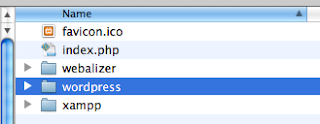
Now you need to update the configuration of Wordpress to connect to our MySQL database. Open /Applications/XAMPP/htdocs/wordpress/wp-config.php and make the following changes:

Now you just need to open the installation of Wordpress by going to the following URL: http://localhost/wordpress/wp-admin/install.php

First you'll need to download the following:
XAMPP is an Apache distribution containing MySQL, PHP and Perl. It makes it much easier to install them. The Mac OS X package can be downloaded from here.
After downloading it, open the dmg archive and just drag the XAMPP folder to the Application folder to install it.

XAMPP will host our web folder and using the XAMPP console, we'll be able to start/stop Apache HTTPd and MySQL.
First let's start Apache HTTPd and MySQL:
Go to the Application folder, open the XAMPP folder and start "XAMPP Control":

Now start both Apache and MySQL.
When starting Apache, you might be asked to authenticate. This will be required everytime you start or stop Apache.
If starting Apache fails, you'll need to open the system preferences (Apple-Menu / System Preferences...) and choose Sharing (in Internet & Wireless) and disable Web sharing:

You should then be able to start the Apache web server.
If you get a message stating it wasn't possible to start MySQL because it's already running, you will need to either uninstall existing installations of MySQL or not have them start automatically. Here's what I did on my system in order to do it:
ps -Af | grep sql | grep -v grep | awk '{ print $2; }' | xargs sudo kill -9
Then I've edited /etc/hostconfig and removed the line MYSQLCOM=-YES-
Then the following:
sudo rm /usr/local/mysql
sudo rm -rf /usr/local/mysql*
sudo rm -rf /Library/StartupItems/MySQLCOM
sudo rm -rf /Library/PreferencePanes/My*
sudo rm -rf /Library/Receipts/mysql*
sudo rm -rf /Library/Receipts/MySQL*
WordpressOpen phpMyAdmin which is part of XAMPP: http://localhost/phpmyadmin
There you need to create a database in MySQL for Wordpress using the following settings:

After clicking Create, the database you need for wordpress will be created.
Now you need to deploy Wordpress in XAMPP:
Download Wordpress from http://wordpress.org/latest.zip
Extract the file (double-click) and copy the wordpress directory to /Applications/XAMPP/htdocs:

Now you need to update the configuration of Wordpress to connect to our MySQL database. Open /Applications/XAMPP/htdocs/wordpress/wp-config.php and make the following changes:

Now you just need to open the installation of Wordpress by going to the following URL: http://localhost/wordpress/wp-admin/install.php

Subscribe to:
Posts (Atom)